Ceriwis  

Go Back   Ceriwis > DISKUSI > Lounge

Lounge Berita atau artikel yang unik, aneh, dan menambah wawasan semuanya ada disini dan bisa dishare disini.

Reply
 
Thread Tools
  #1  
Old 27th May 2012
ondelondel's Avatar
ondelondel ondelondel is offline
Ceriwis Lover
 
Join Date: May 2012
Posts: 1,996
Rep Power: 17
ondelondel mempunyai hidup yang Normal
Default [TUTORIAL] Cara Membuat GLOW Effect Di Photoshop !

Welcome To My Thread


MOHON DI-RATE 5 STAR SESUDAH/SEBELUM MEMBACA


[/quote]
Quote:


TIADA REPOST


[/spoiler]
Spoiler for open this:
for No Repost:


Spoiler for open this:


Spoiler for open this:
Quote:


Quote:


Langsung Saja ya...

Quote:


1. Langkah Pertama Buka foto yg mau agan Edit, trus agan buat LAYER baru atau pilih NEW LAYER di bawah kanan


Quote:
Spoiler for open this:
for Langkah 1:


Spoiler for open this:


Spoiler for open this:
Quote:


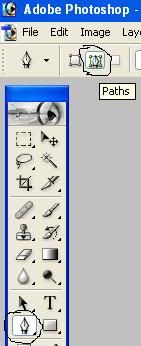
2. Kemudian Pilih PEN TOOL,pastikan agan memilih ikon Path pada panel Pen Tools di bagian atas layar seperti ilustrasi di bawah.


Quote:
Spoiler for open this:
for Langkah 2:


Spoiler for open this:


Spoiler for open this:
Quote:


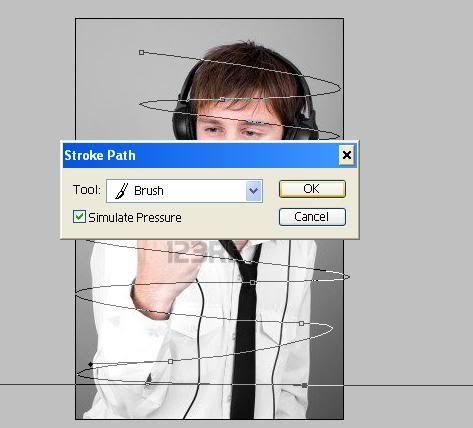
3.Nah ini mungkin langkah yg akan agan pertanyakan,tapi ini tidak terlalu susah kok,agan buat kayak garis kurva gitu deh,melingkar lingkar ditubuh pake pen tool, terus klo udah jadi,usahakan Brush color agan warna putih

trus klik kanan di gambar tsb,pilih STROKE PATHS, lalu TOOL nya ganti BRUSH ,centang tulisan SIMULATE PRESSURE kayak gambar dibawah ini,lalu ok


Quote:
Spoiler for open this:
for Langkah 3:


1.jpg[/IMG]


Spoiler for open this:


Spoiler for open this:
Quote:


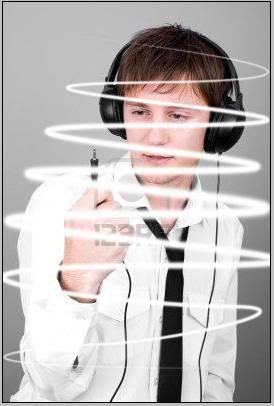
4.Klik kanan di foto tsb,pilih DELETE PATHS


Quote:
Spoiler for open this:
for Langkah 4:


Spoiler for open this:


Spoiler for open this:
Quote:


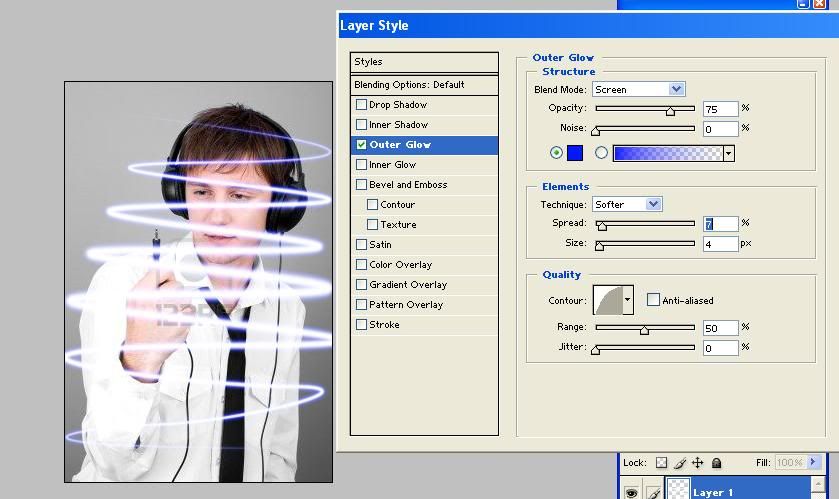
5. Pilih LAYER>LAYER STYLE>OUTER GLOW, lalu akan muncul kayak gambar dibawah,trus Kotak Yg warna KREM itu,agan klik ganda lalu pilih warna sesuka agan, lalu ada tulisan SPREAD,ganti angkanya jadi 10,semakin besar angkanya,warna nya lebih kentara,lalu OK


Quote:
Spoiler for open this:
for Langkah 5:


Spoiler for open this:


Spoiler for open this:
Quote:


6.Ini Langkah terakhir,agan pilih ERASER TOOL,lalu hapus bagian Glow Yang Tidak perlu jadi kayak gini


Quote:
Spoiler for open this:
for Langkah Terakhir:


Spoiler for open this:


Spoiler for open this:
Quote:


Ini Nih Ane Sisipin Videonya klo gak ngerti cara ane


Quote:
Spoiler for open this:
for Tutorial Video:


[spoiler=open this] for TUTORIAL PEN TOOL:


[quote]


Mohon Hargai Kerja Keras TS Dengan


</div>
Reply With Quote
Reply


Posting Rules
You may not post new threads
You may not post replies
You may not post attachments
You may not edit your posts

BB code is On
Smilies are On
[IMG] code is On
HTML code is Off


Terkait
Thread Thread Starter Forum Replies Last Post
VIDEO TOURIAL_30 PHOTOSHOP Tutorial Digital Effect LinuxManiax Shareware & Freeware 0 24th October 2012 12:53 PM
JUAL Jasa isi HDD Tutorial Photoshop, After Effect, 3dsmax, dll cdoriginal CD/DVD 0 10th September 2012 02:42 PM
JUAL Jual DVD Tutorial Photoshop Secret Effect 5000/DVD dvdemperan CD/DVD 0 10th September 2012 01:41 PM
[TUTORIAL] Cara Membuat GLOW Effect Di Photoshop ! somaybandung Lounge 0 27th May 2012 03:44 PM
[TUTORIAL] Cara Membuat GLOW Effect Di Photoshop ! demokrat Lounge 0 27th May 2012 03:18 PM


All times are GMT +7. The time now is 05:40 PM.